Oracle Cloud Free Tier Sign-Up, Hands-On: 2026 Quotas and the 10-Step Walkthrough
A 10-step field record to the console: 2026 A1 hours are metered monthly, avoid Seoul and Tokyo as home region, card verification charges nothing.
Contents (18 sections)
Why this article
Oracle Cloud’s Always Free tier is one of the few big-vendor plans that still gives individuals genuinely permanently-free virtual machines: the Arm-based Ampere A1 instance quota is enough to run a blog, a proxy, or a small service day to day. But it has two old problems: the sign-up flow is long, and the numbers in older Chinese-language tutorials are outdated.
This article is the working manuscript from turning that sign-up flow into an AI registration-wizard skill and walking readers through it step by step: every screenshot comes from my own October 2026 registration, and every policy number was checked against Oracle’s official pages (sources at the end, accessed 2026-10-07). First, the most important changes.
Read the 2026 free allowance carefully first
The sign-up entry is at oracle.com/cloud/free. The free tier has two layers:
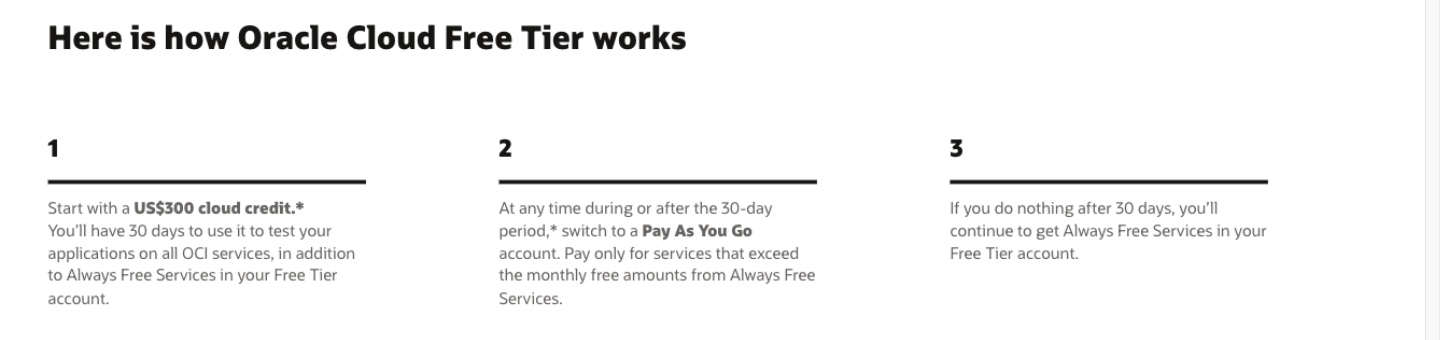
- Trial layer: new users get $300 of cloud credit, valid for 30 days, usable on almost all OCI services.
- Always Free layer: after 30 days, without upgrading to paid, the account automatically moves to the permanently-free state, with the resources below available indefinitely.
The key change concerns Arm compute (Ampere A1). Oracle’s current documentation puts it as: per tenant, the first 1,500 OCPU hours + 9,000 memory GB hours each month are free. Translated into plain terms: 2 OCPU / 12 GB can run 24/7 for the entire month; you can also configure 4 OCPUs / 24 GB, but only for about half a month — beyond the free hours, the instance gets stopped.
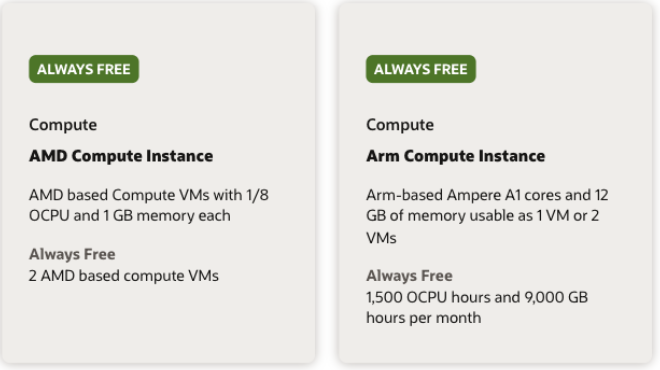
The “4 cores / 24 GB permanently free” in many old tutorials online reflects an earlier policy — running 4/24 for a full month takes about 3,000 OCPU hours, already beyond today’s 1,500. Launch an instance on the old numbers and it will shut down mid-month; that’s not a fault, the allowance ran out. Other Always Free resources include two AMD micro instances (1/8 OCPU + 1 GB RAM each) and 200 GB of block storage in total; the docs also note each instance’s boot volume must be at least 47 GB, so two instances eat nearly 100 GB — the 200 GB disk is not roomy, so plan headroom.
Before you start: three eligibility checks
- An email address that actually receives mail. It becomes your login account, and one email address can register only one account.
- A real credit card. Visa / Mastercard / Amex; debit cards carrying a card-network logo that work without a PIN also qualify. Oracle’s official FAQ says it explicitly: PIN-debit cards and virtual, one-time, and prepaid cards are not accepted. This is the only hard requirement in the whole flow — no workarounds. The risk section at the end expands on this.
- Decide your home region. Step 5 of sign-up asks for the “Home Region”, which decides the data center where your account and all resources live, and it can never be changed after registration. If you want A1 instances, steer clear of Seoul and Tokyo — the sign-up page itself pops a warning about high A1 demand in those two regions, and the official FAQ confirms the “out of host capacity” error means the home region temporarily lacks free capacity. Nearby alternatives include Osaka, Chuncheon, Singapore, Sydney, and Melbourne; the rule of thumb is: close to you.
The 10-step sign-up flow
All screenshots below come from my October 2026 registration, with all demo information redacted.
Step 1: open the sign-up entry
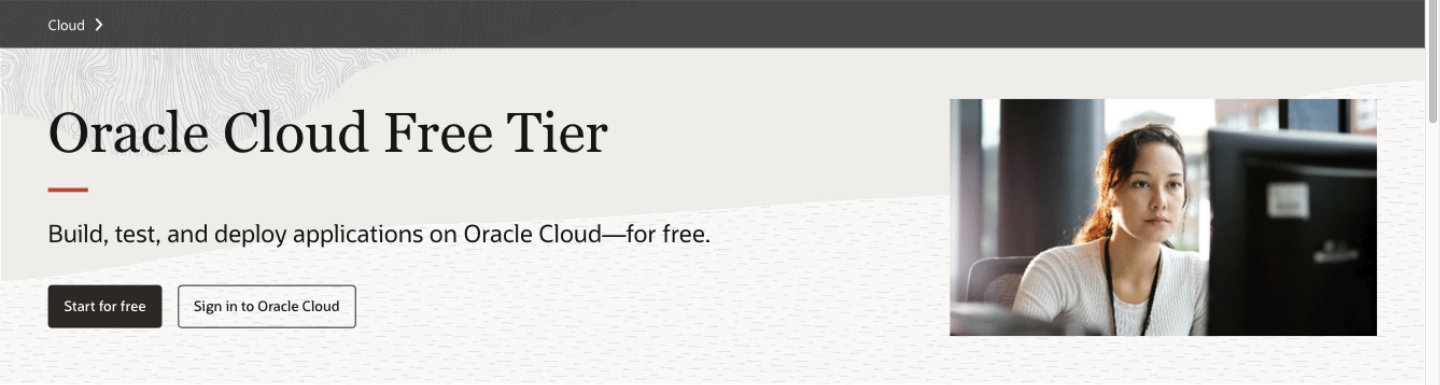
Go to oracle.com/cloud/free and click Start for free; you’ll land on the signup.cloud.oracle.com page. When you see the “Account Information” form, you’re in place.
Step 2: fill in account information
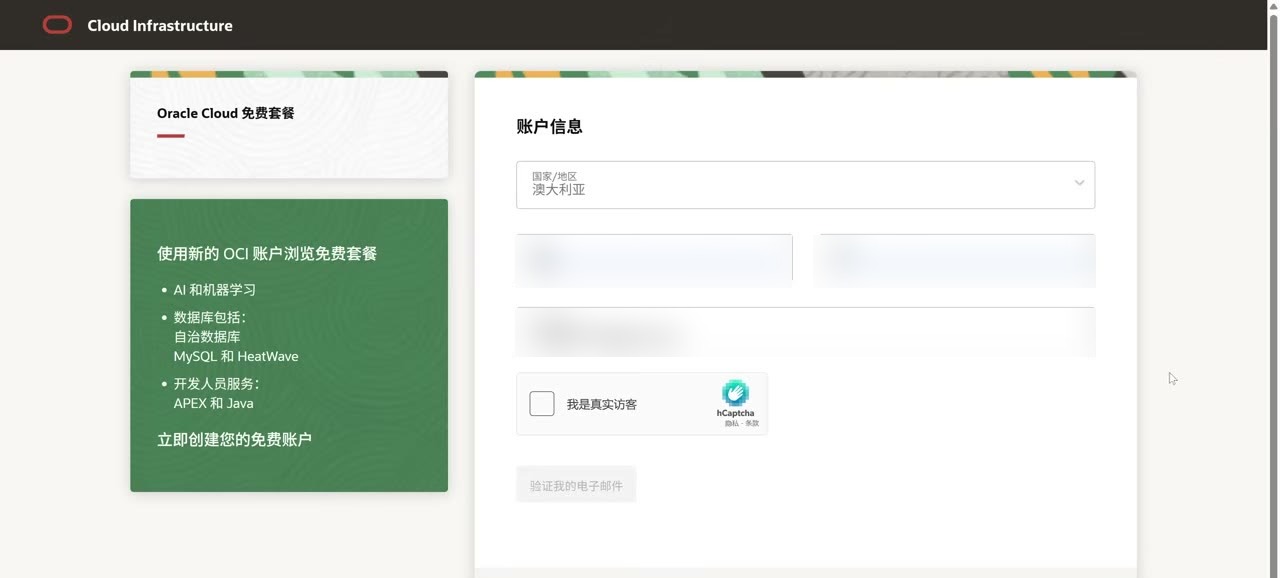
Three fields: country/region (pick truthfully), name in pinyin, and email. The page explicitly requires truthful, valid details — beyond compliance, the official FAQ also states each person is allowed one free account, and creating or attempting to create multiple free accounts gets you banned. If you’ve registered before, your details cannot be reused.
Step 3: CAPTCHA + email verification
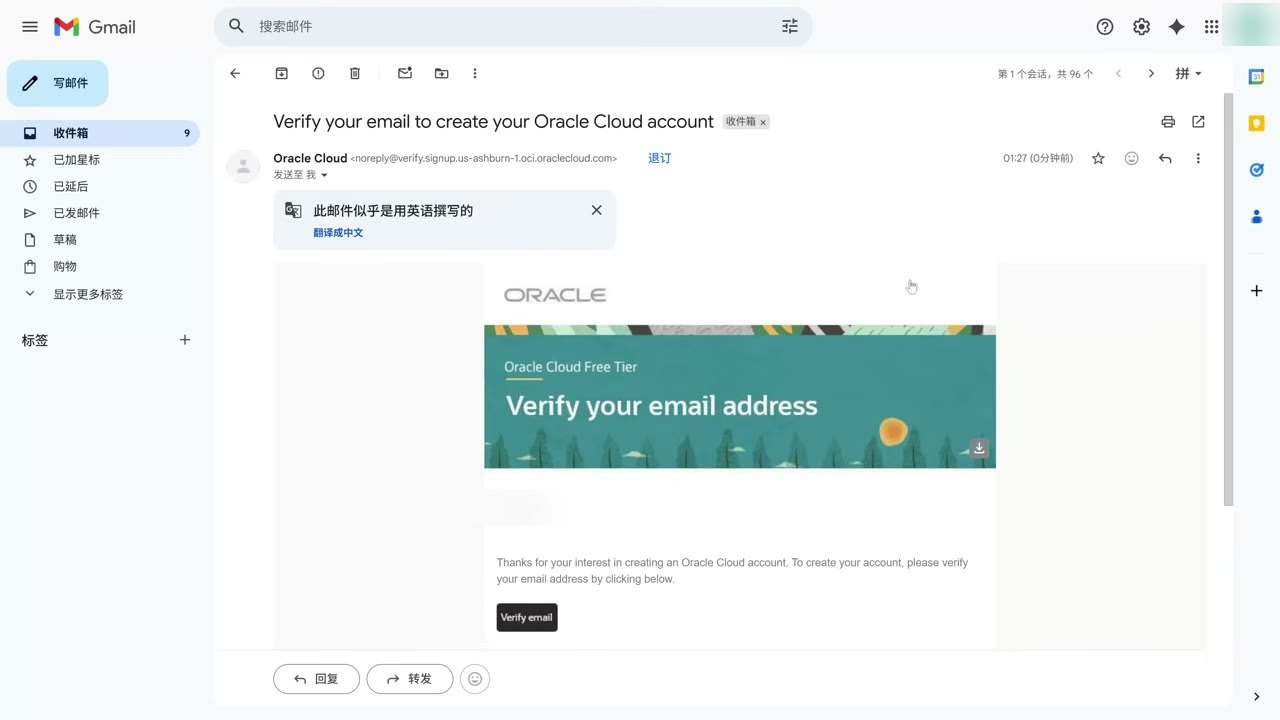
Check the hCaptcha box (it may ask you to pick images twice — normal), click “Verify my email”, then go to your inbox immediately for the message titled “Verify your email address” and click the button inside. Note: in my test this verification link is valid for only 30 minutes — the most common place beginners get stuck. If it doesn’t arrive, check spam first; if it’s not there, go back to the sign-up page and resend once (each resend invalidates the old link).
Step 4: set password and customer type
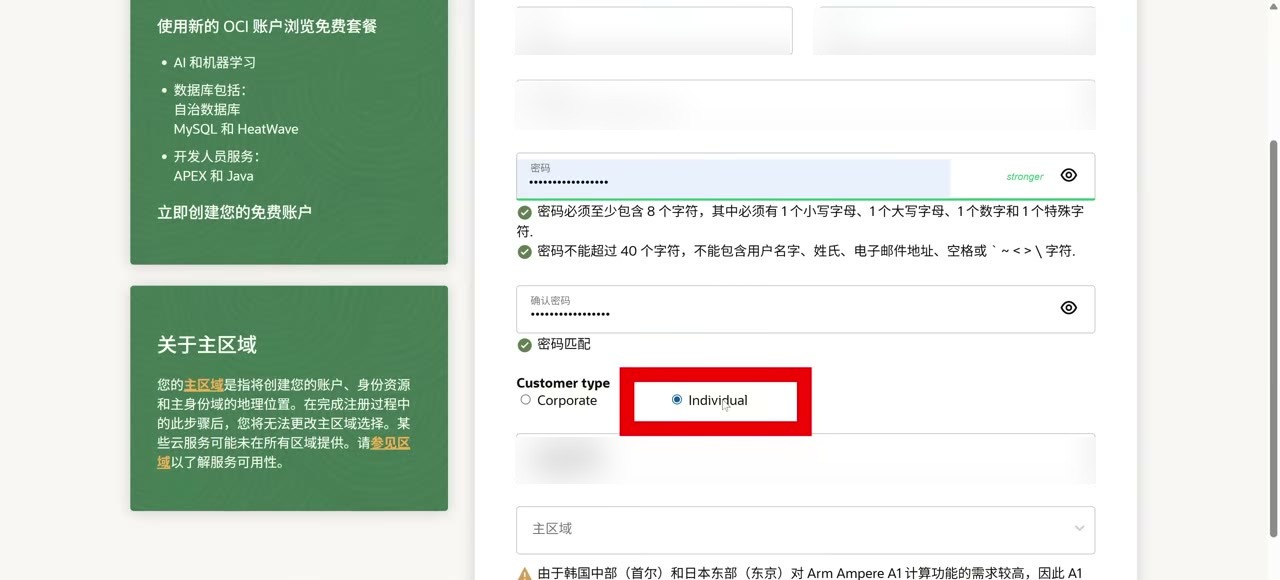
Passwords must be 8–40 characters, mixing upper- and lower-case letters, digits, and special characters, and cannot contain your username, name, or email — the page gives live feedback on whether you qualify. For Customer type, choose Individual. Leave the Cloud account name at its default: it is your future “tenant name”, needed to sign in to the console — write it down.
Step 5: choose the home region (the most critical step of all)
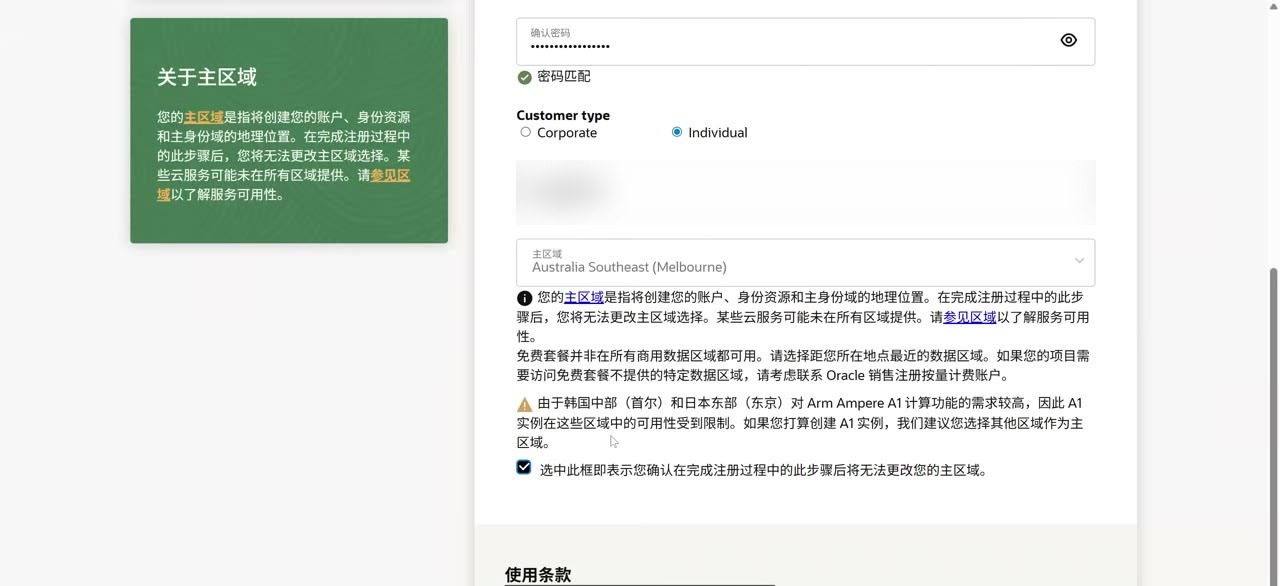
Once more: after choosing, it can never be changed. My field-test choice was Melbourne (Australia Southeast). Tick “I confirm my home region cannot be changed later” and continue. The red box in the screenshot below is the official warning about Seoul/Tokyo capacity.
Step 6: fill in address and phone
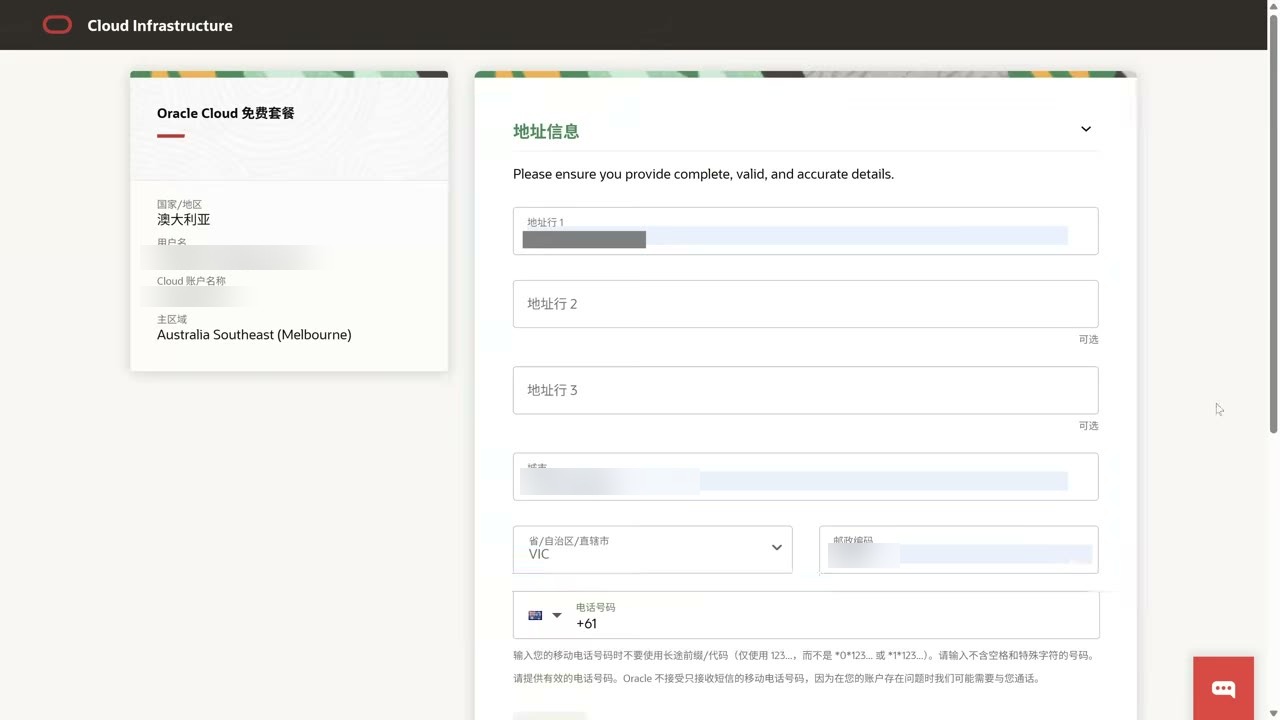
Enter your mailing address and mobile number truthfully. Format the phone per the page: if you picked +61, enter the mobile number directly without adding the domestic long-distance prefix 0. The page notes that SMS-only numbers aren’t accepted — if anything goes wrong, Oracle may call you, so keep it real.
Step 7: card verification (no charge)
First, the official page’s own words: the free tier charges nothing; the small temporary hold that may appear on your payment method is only for verification and will be removed automatically; Oracle does not accept any virtual, prepaid, or one-time cards.
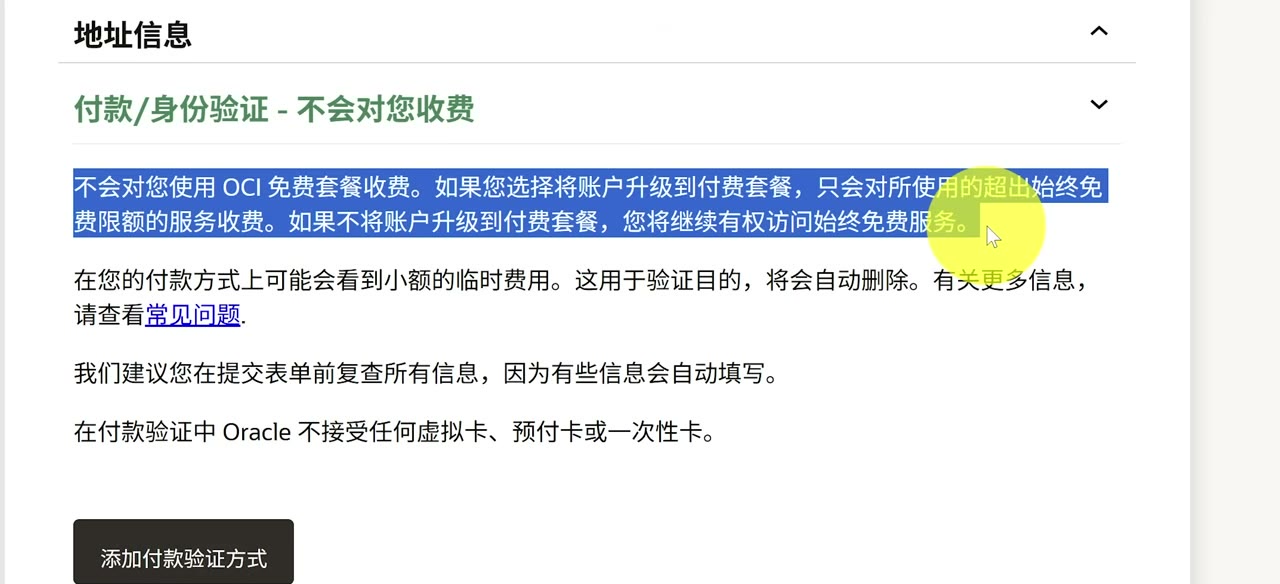
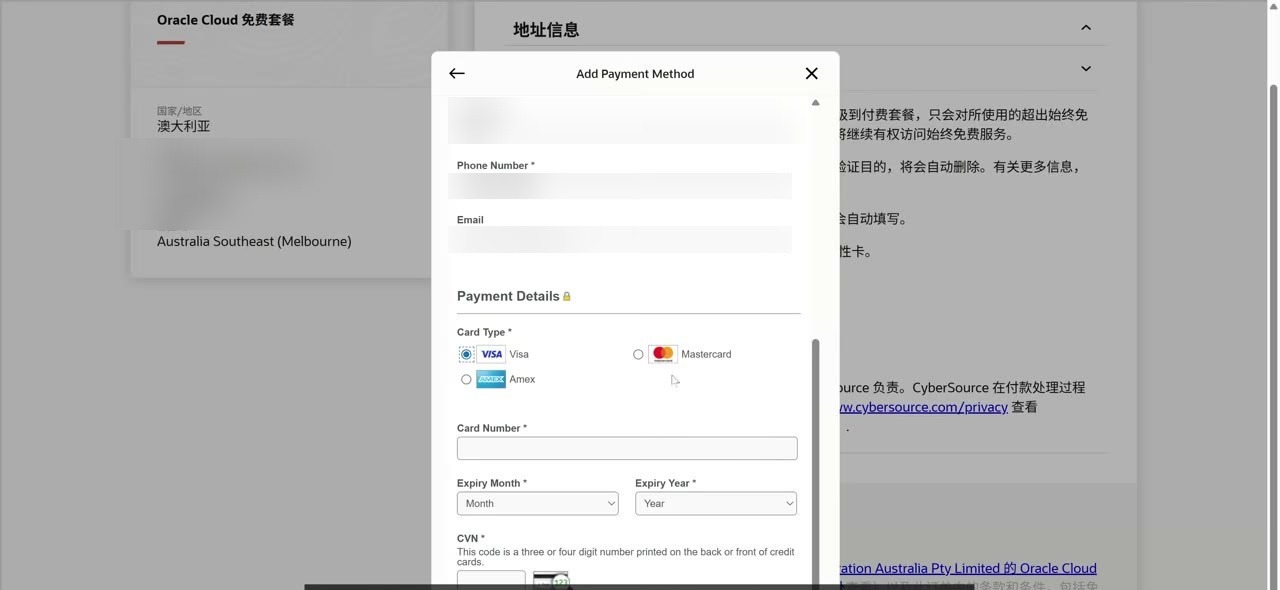
Click “Add payment verification method” → pick the card type → enter card number, expiry, CVN → click Finish and wait for the green checkmark. Oracle’s documentation is explicit: a small temporary charge (a pre-authorization) may appear during verification and will be removed automatically, and as long as you never actively upgrade the plan, the credit card will never actually be charged; the official FAQ adds that banks reverse the pre-authorization within 3–5 days.
Step 8: submit the application
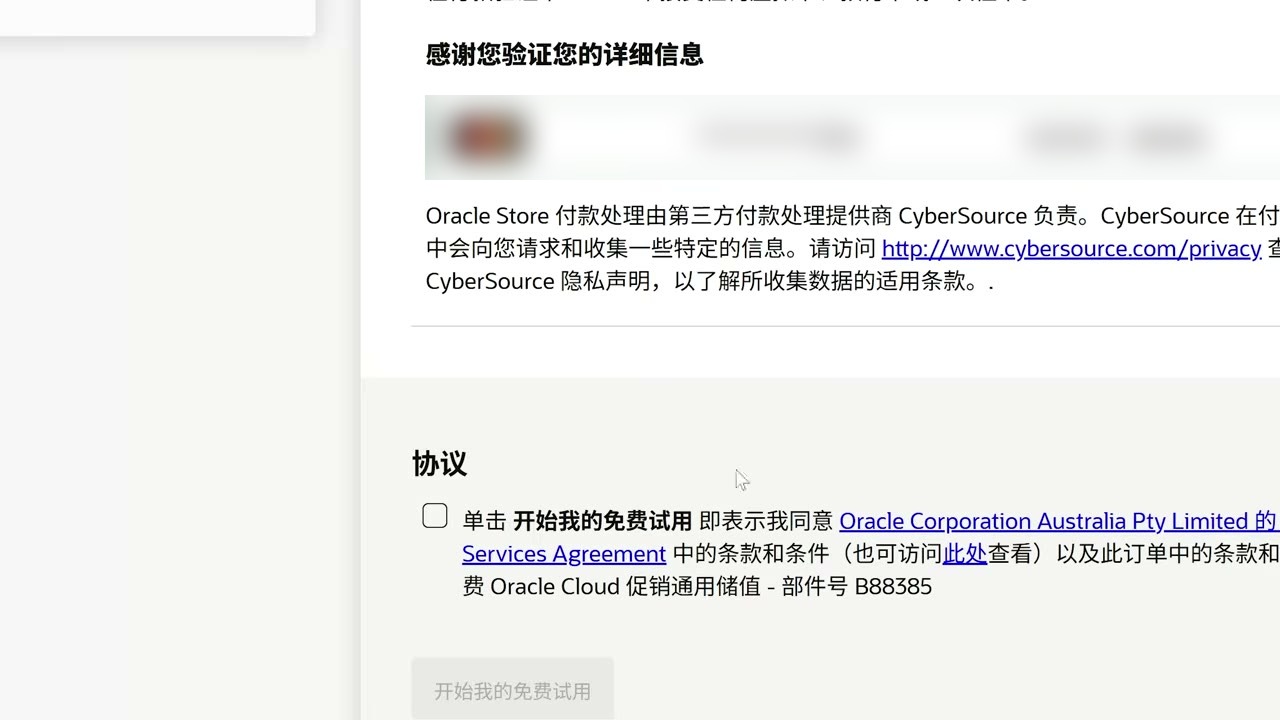
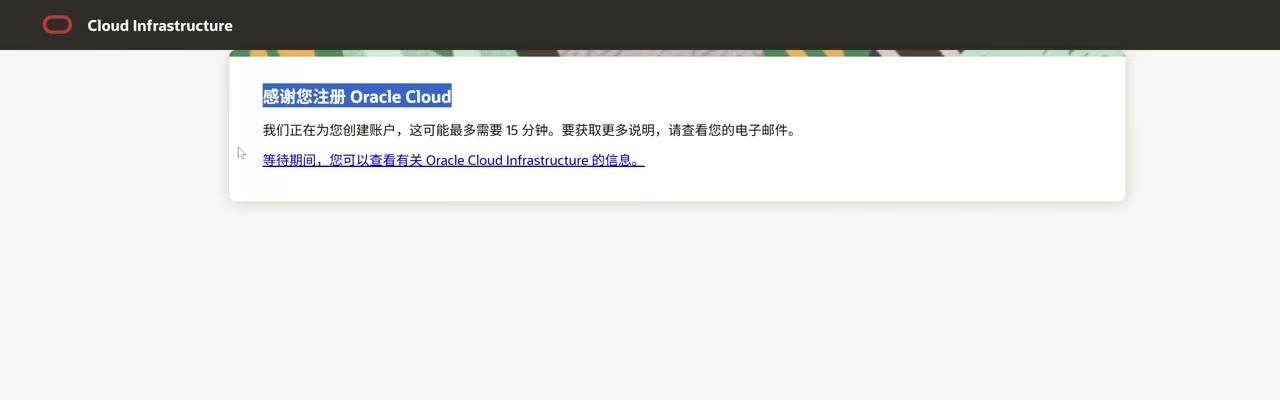
Agree to the terms, click “Start my free trial”. The page says account creation can take up to 15 minutes, and you’ll get an email when it’s done. While waiting, do a final self-check: is the card real? Are your details different from any old account? Did you avoid Seoul/Tokyo for the home region?
Step 9: first sign-in + two-factor
Click Sign in from the activation email, and sign in with “Cloud account name + username + password”. The first sign-in forces you to set up 2FA: install Oracle Mobile Authenticator from your phone’s app store (look for the red ORACLE icon), then scan the QR code to bind.

Step 10: into the console
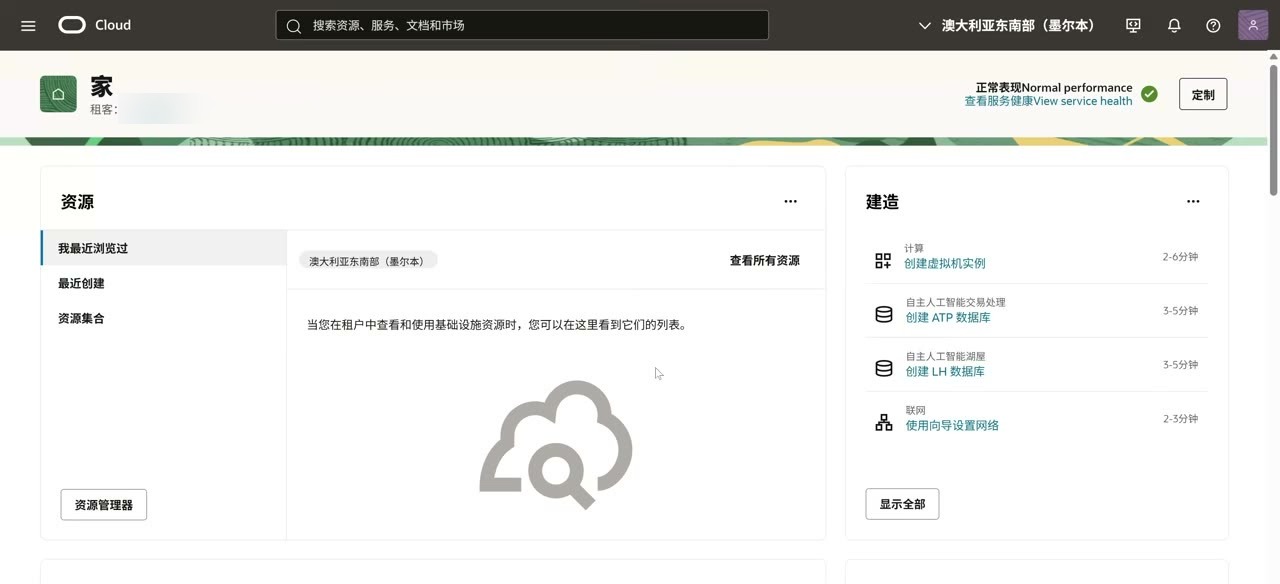
If the account info at the top-left shows Free Tier, you’re done. Two suggestions: do not click upgrade (after upgrading, usage beyond the free allowance is billed); and switch the console language to whatever you’re comfortable with.
Send the skill to your AI and let it walk you through
The complete “AI registration wizard” skill behind this tutorial is hosted openly. Just send this URL to whatever AI Agent you have at hand (Muse, Manus, Grok’s Bot, anything that can read web pages):
https://szb123.com/files/oracle-cloud-signup/SKILL.md
No need to craft a prompt — send this sentence:
Based on this skill: https://szb123.com/files/oracle-cloud-signup/SKILL.md, help me register an Oracle Cloud server (free tier).
The value of AI-assisted registration is direct: the whole flow is broken into one step at a time, each step with a screenshot to compare against and a clear completion criterion. The most common failure points — the 30-minute email link expiry, the unchangeable home region, card rejection — are all flagged in advance by the wizard and troubleshot the moment you get stuck. Compared with fumbling through outdated tutorials on your own, it’s far more efficient, and far fewer registrations die from avoidable mistakes. That’s why I turned the entire registration flow into a wizard skill: let the AI lead, and turn your first registration from “rolling the dice” into “following a checklist”.
It works exactly as the skill designs it: one step at a time, each step paired with a screenshot, moving on only after you reply with the result, and checking the troubleshooting manual before answering when errors appear. The division of labor matches this article — the AI guides and troubleshoots; the card number, password, and verification codes are always typed in by your own hands. To use it offline or plug it into your own agent’s skill directory, grab the complete package: oracle-cloud-signup-skill.zip (all step-by-step scripts, the troubleshooting manual, and screenshots).
Quick reference for common sticking points
- Verification email never arrives: check spam and the “Promotions” tab (especially Gmail users), wait 2–3 minutes, then resend from the sign-up page; corporate and self-hosted domain mailboxes may reject Oracle wholesale — re-register with Gmail.
- Card rejected: troubleshoot by likelihood — unsupported card type (virtual/prepaid) → insufficient balance or international online payments not enabled → billing address mismatch with bank records → issuing bank blocking → network risk control. Don’t retry repeatedly after failures — it deepens risk control; try again the next day.
- Instance creation reports out of host capacity: per the official FAQ, the home region temporarily has no free capacity. Drop to 2 OCPU / 12 GB or lower and retry at different hours; the home region cannot be changed.
- Account disabled: usually 30 consecutive days idle (official FAQ: accounts idle over 30 days may be deemed abandoned and enter suspension or termination), or untruthful details, or an account shared by several people. Appeal following the email instructions; if it can’t be saved, the only path is a fresh registration with entirely new details.
Five things to do after registration
- Write down three things: login email, password, and the Cloud account name (tenant name).
- Don’t delete Oracle Mobile Authenticator from your phone — every login needs it.
- Don’t upgrade the plan. That’s the precondition for “permanently free”; the official docs say it bluntly: without an active upgrade, the credit card is never charged.
- Configure A1 within 2 OCPU / 12 GB; if capacity won’t come, lower the config and try different hours.
- Log in once a week. Thirty idle days in a row may get the account reclaimed — don’t let a hard-won registration go to waste.
Finally, the risks, plainly
Every rule of this free tier is written down officially: one account per person, truthful details, a real card for verification, idle reclaim. The “multiple accounts”, “virtual cards pass verification”, and “shared card binding services” circulating online don’t just violate the terms and get accounts banned — the card-binding services in particular are a hotbed of black-market fraud: hand over your card number and CVV, and the loss comes out of your own pocket. This article covers only the official flow from start to finish: fill in your real details, use your own card, don’t upgrade and you won’t be charged. It’s free — follow the rules, and it stays free.
FAQ
Can a virtual or prepaid card pass card verification?
No. Oracle's official FAQ states it plainly: only credit cards and debit cards usable as credit cards are accepted; PIN-debit cards, virtual cards, one-time cards, and prepaid cards are all rejected. It is the single hard requirement of the whole process, with no workaround.
What if I picked the wrong Home Region?
It can't be changed — it's fixed forever the moment registration completes. The Billing Country, however, can be re-entered by refreshing before the email verification, and it's fine for the person and the home region to be in different places. If you truly must switch regions, the only path is registering again with entirely new details — a heavy price, so think it through carefully at step 5.
What if instance creation reports out of host capacity?
The official FAQ explains this as the home region temporarily having no capacity for the Always Free shape. Drop the config to 2 OCPUs / 12 GB or even 1 / 6 GB and retry, and try again at different times of day; the home region cannot be changed, so if you can't grab capacity, patience is the only option.
Changelog
- Oct 7, 2026 First published: written up from the owner's October 2026 field registration, with name, email, tenant name, and billing postal code redacted throughout.
Sources & data dates
- Oracle Cloud Free Tier official FAQ (card types, one-account-per-person, idle reclaim, pre-auth rules) · Accessed Oct 7, 2026
- Oracle official docs: Always Free Resources (source for monthly A1 hours and block storage allowance) · Accessed Oct 7, 2026
- Oracle official docs: Sign Up for the Free Oracle Cloud Promotion (sign-up steps and card verification) · Accessed Oct 7, 2026
- Oracle Cloud Free Tier official site (sign-up entry, $300 trial, and Always Free service list) · Accessed Oct 7, 2026
- Owner's hands-on material (@yedabinbinah, October 2026 sign-up field test — source of all screenshots here) · Accessed Oct 7, 2026
Translated from the Chinese original; the editorial review applies to the Chinese version.

yedabin Reviewed
A programmer with a science background, former trading-platform engineer, and stand-up comedy fan. Proudest moment: bought 8 BTC for RMB 4,000.
Every factual statement cites sources and access dates. Pages carrying the “Reviewed” badge were checked line by line by a human before publishing.
Reviewed by yedabin (Oct 7, 2026)